


A Closer Look at Nmap: The Tool That Reveals What Lies Beneath the Network
?What Is Nmap
In the world of networking and cybersecurity, it is not enough to simply ensure that devices are connected to the internet. We need to answer deeper questions: Which devices are active on the network? Which port are open? And what services and applications are running behind those ports
This is where Nmap (short for Network Mapper) comes in. It is one of the mostwidely recognized and commonly used tools worldwide for network discovery and security assessment
Nmap One of the Most Important Tools for Network Administrators andwhy Ethical Hackers
:Nmap provides a wide range of essential features that make it an indispensable tool for asset management and security investigation
Network Inventory: Identifies devices and equipment connected to a network and tracks their IP addresses -
Unauthorized Device Detection: Performs regular scans to identify unfamiliar or unauthorized devices added to the network -
Network Troubleshooting: Helps identify service failures and monitor response status and packet transit times -
Operating System and Service Detection (OS & Version Detection): Identifies operating system types and detects software versions with a high degree of accuracy -
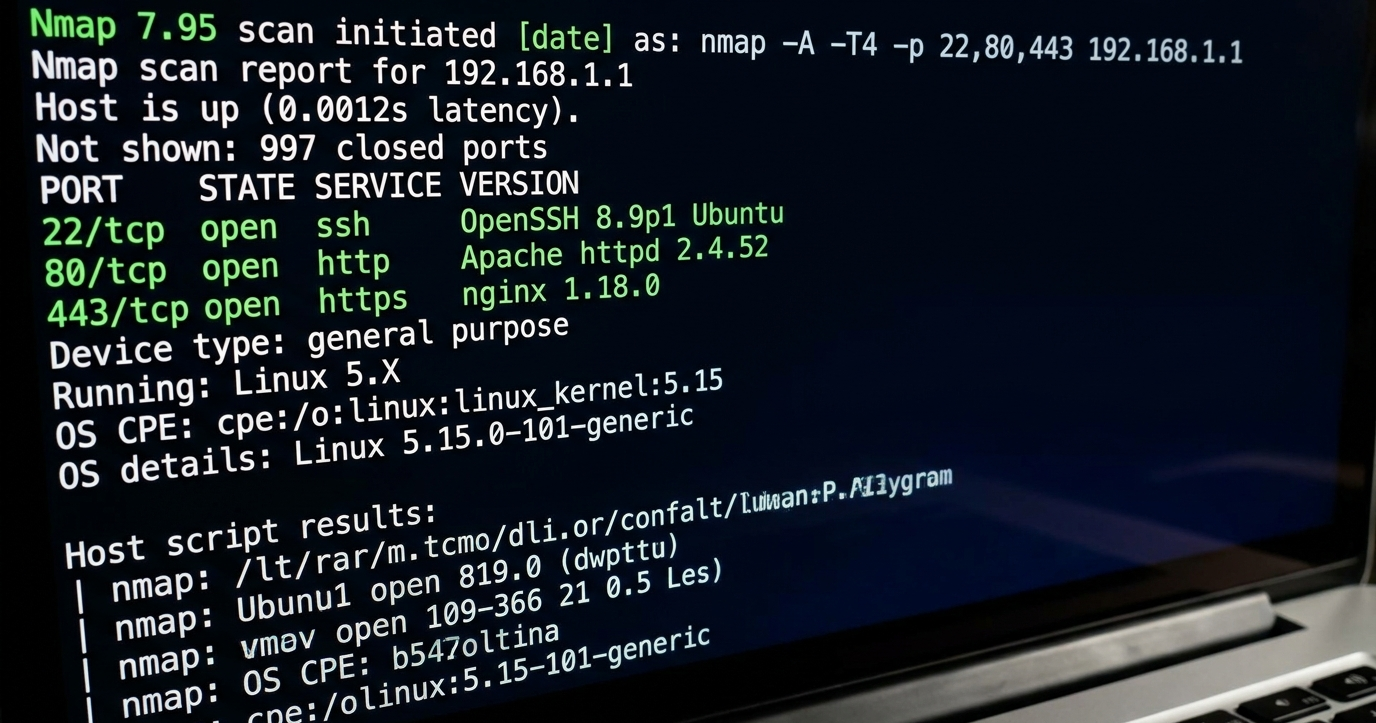
How Does Nmap Work Within a Network? Command-Line Output
Nmap operates at the raw IP packet level. When a scan command is executed in the terminal, the program sends specially crafted requests to the target and analyzes the responses to classify each port into one of the main states:
Open: The port is accepting connections or receiving traffic from an application.
Closed: The port is accessible, but no application is listening on it.
Filtered: A firewall or other network filter prevents Nmap from determining whether the port is open or closed.
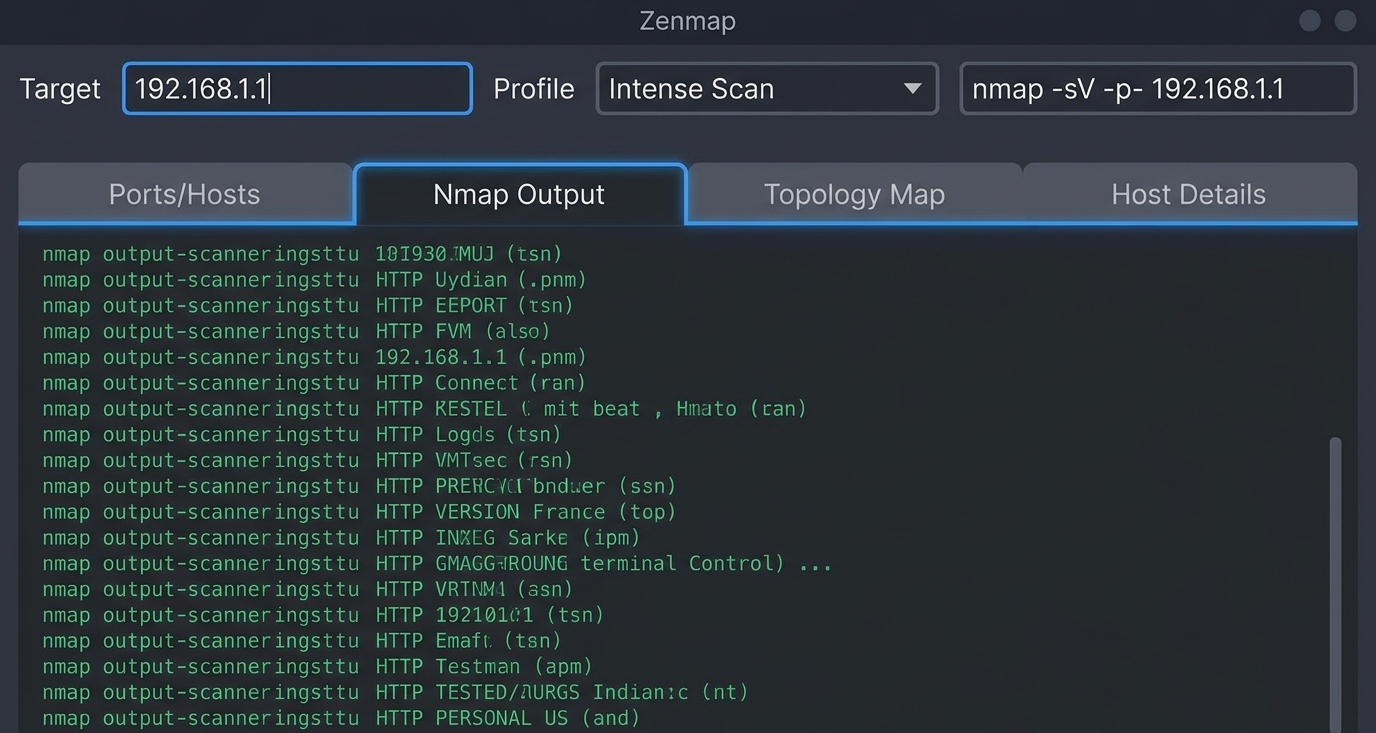
Graphical Interface: Turning Complex Commands into Visual Insights
Zenmap
Zenmap is the official graphical user interface (GUI) for Nmap. It is designed to make Nmap easier for beginners to use without sacrificing the powerful features and advanced functionality required by professionals.
- Nmap Output Tab: Displays the command’s live text output during execution, using the same format as the command-line interface.
- Ports / Hosts Tab: Displays all discovered ports, organized by host or by the services running on each device.
- Topology Tab: Creates an interactive network topology map that visually represents network structure and routing paths.
- Host Details Tab: Collects detailed information about a specific device, including its operating system, the number of open and closed ports, and its physical address (MAC address).
- Command Profiles: Allows users to save frequently used scan configurations and run them with a single click instead of rewriting the commands each time.
Most Popular Nmap Scanning Techniques and Commands: Examples
Nmap offers dozens of options and commands. The following table summarizes some of the most important commands and practical scanning techniques used in everyday network analysis.
Command / Option
Type
Description and Practical Application
nmap 192.168.1.1Basic Scan
Scans a single IP address to identify the 1,000 most common ports.
nmap 192.168.1.0/24Subnet Scan
Scans the subnet to discover active hosts within the specified CIDR range.
sudo nmap -sSSYN Stealth Scan
Performs a half-open scan without completing the full TCP three-way handshake. It is the default scan when running with root privileges.
nmap -sTTCP Connect Scan
Completes the full TCP connection handshake. It is used when raw packet privileges are unavailable.
sudo nmap -sUUDP Scan
Scans for UDP services such as DNS, SNMP, and DHCP. It is slower but important for discovering UDP-based services.
nmap -snPing Scan / Host Discovery
Discovers active hosts without performing a port scan.
nmap -PnSkip Ping
Skips host discovery and scans ports directly. This is useful when a firewall blocks ICMP or other host-discovery probes.
nmap -sVVersion Detection
Identifies software and service versions running on open ports.
nmap -OOS Detection
Attempts to identify the operating system using TCP/IP stack fingerprinting.
nmap -AAggressive Scan
Combines operating system detection, service version detection, script scanning, and traceroute.
nmap -FFast Scan
Quickly scans the 100 most common ports to save time.
Note: Replace
Advanced Automation
The Nmap Scripting Engine (NSE) is one of Nmap’s most powerful features. It allows users to write and execute scripts in the Lua programming language to automate network discovery and security investigation tasks.
NSE scripts are organized into several main categories:
default: Safe and relatively fast scripts that run automatically when using the
-sCor-Aoptions.discovery: Scripts that gather additional information, such as DNS queries, SMB shares, and WHOIS data.
safe: Scripts designed to perform checks with a low risk of disrupting the target system. However, no script is guaranteed to be completely risk-free in every environment.
vuln: Scripts designed to detect known security vulnerabilities.
auth: Scripts used to examine authentication mechanisms and credentials, such as testing anonymous FTP access.
malware: Scripts that help detect signs of malware or backdoors on a target system.
A Systematic Comparison: When Should You Use Nmap or Masscan?
In practical cybersecurity operations, beginners often ask: Should we use Nmap or Masscan?
The truth is that these tools complement each other rather than compete directly. Each tool is designed for different scanning requirements and operational priorities.
The following table highlights their main differences:
Comparison
Nmap
Masscan
TCP Networking Stack
Uses operating-system networking facilities, including raw sockets where appropriate.
Uses a custom TCP/IP stack designed for high-speed scanning.
Scanning Speed
Moderate to high, with a focus on detailed analysis and accuracy.
Extremely fast, capable of transmitting millions of packets per second under suitable conditions.
Accuracy
Offers detailed results and retransmissions to help handle lost packets.
Accuracy can decrease at very high scanning rates, potentially producing incomplete or misleading results.
Service Version Detection (
-sV)Supported, using probes and a comprehensive service-detection database.
Not supported as a built-in equivalent to Nmap's version-detection feature.
Operating System Detection (
-O)Supported through TCP/IP stack fingerprinting.
Not supported as a built-in equivalent to Nmap's OS-detection feature.
Scripting Engine (NSE)
Supports hundreds of advanced scripts written in Lua.
Does not include an equivalent scripting engine.
Best Use Case
Detailed scanning and analysis of specific devices or smaller networks.
Rapid port scanning across very large address ranges to identify potentially active hosts and open ports.
In summary: Masscan is useful when speed and large-scale port discovery are the main priorities, while Nmap is better suited to detailed investigation, service identification, operating system detection, and vulnerability assessment. Using both tools in a controlled and authorized workflow can provide a more comprehensive view of a network
Saving and Exporting Scan Reports (Output Formats)
Nmap allows users to save scan results in four main formats to meet different documentation and analysis needs:
- Normal Output (
-oN): Saves results in a standard text format similar to what appears in the terminal.- XML Output (
-oX): Saves results in XML format, allowing other security tools to process the data or convert it into an HTML report.- Grepable Output (
-oG): Uses a line-oriented format that simplifies data processing with Linux tools such asgrepandawk.- All Formats (
-oA): Saves scan results in the three main output formats simultaneously with a single command.Practical Tips for Beginners
If you are taking your first steps in using Nmap, here are some essential tips to help you get the most out of the tool and follow best practices:
- Always begin with a lightweight scan and clearly define the target scope before using advanced options.
- Use a dedicated lab environment to experiment and learn without affecting real-world networks.
- Review local laws and obtain formal written authorization before scanning external targets.
- Save scan results regularly in XML format or use
-oAto compare network changes over time.Nmap is a cornerstone of network discovery and information security assessment. It combines beginner-friendly functionality through Zenmap with the advanced flexibility of command-line options and the Nmap Scripting Engine (NSE). Together, these capabilities provide a comprehensive view of network components and help identify and address digital security risks.
To download the program, visit the official website: https://nmap.org/download.html