



The Complete Guide to Understanding and Analyzing Network Traffic with Wireshark
Wireshark is one of the most popular network analysis tools. It captures data packets traveling across a network and allows you to inspect and analyze them in detail. It is open-source software available for multiple operating systems and is useful for troubleshooting network issues, studying protocols, and analyzing communications for administrative and security purposes.
In networking and cybersecurity, knowing that a device is connected to the internet is not always enough. Often, we need to understand what is happening inside that connection, which protocols are being used, and where a problem might be occurring.
This is where Wireshark becomes valuable. It is one of the best-known tools for analyzing network traffic, capturing data packets, and examining them in detail.
In this article, we will explore Wireshark, how it works, its main uses and key interface components, along with simple examples to help beginners understand how to use it.
What Is Wireshark?
Wireshark is an open-source network protocol analyzer that lets users capture packets passing through a network interface and inspect their contents.
You can think of it as a microscope for network traffic. Instead of seeing a connection as one single process, you can inspect the individual packets traveling between devices and examine the related protocols and data.
Wireshark supports a wide range of network protocols, making it useful for network administrators, students, developers, and cybersecurity professionals.
Why Is Wireshark Used?
Wireshark has many practical uses, including:
- Troubleshooting network connectivity issues.
- Analyzing network protocols.
- Learning how TCP, UDP, DNS, and other protocols work.
- Analyzing the performance of network-dependent applications.
- Investigating communication errors.
- Studying network traffic in a test environment.
- Supporting security investigations and packet analysis.
How Does Wireshark Work?
Wireshark works by capturing data traffic that passes through a network interface.
When your device communicates with another device or server, many packets are exchanged. Wireshark can capture those packets and present them in an organized format.
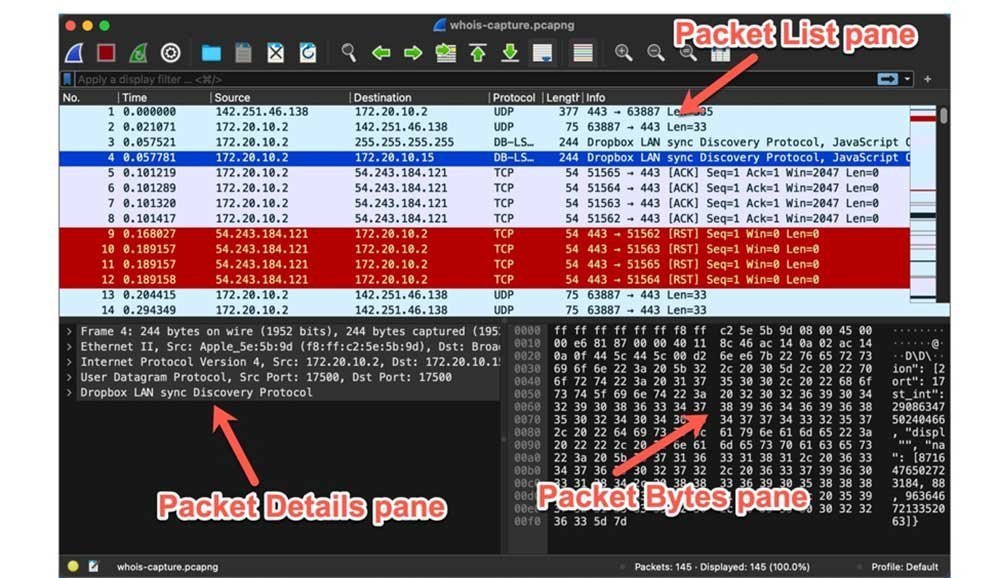
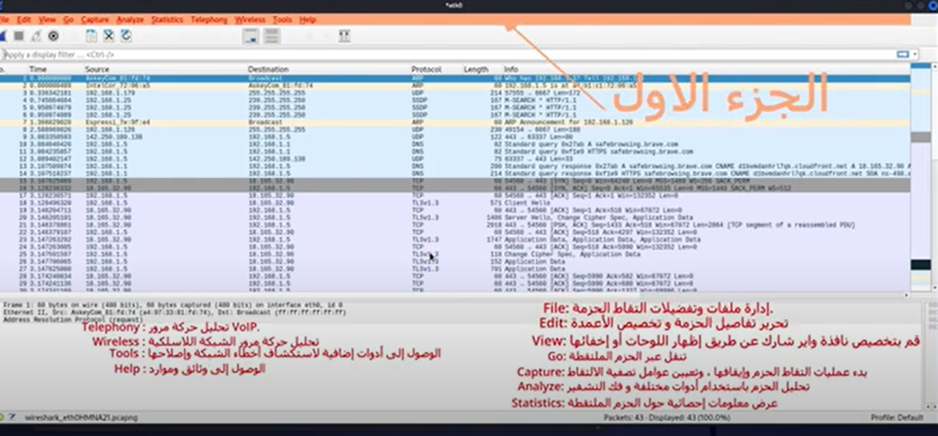
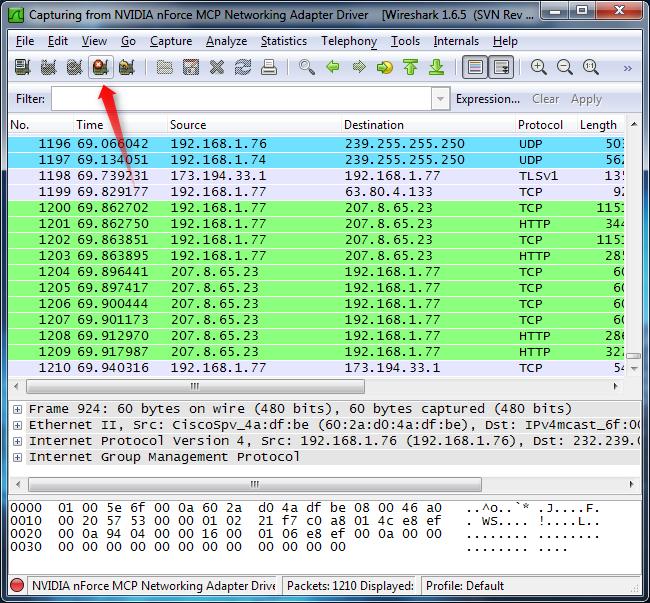
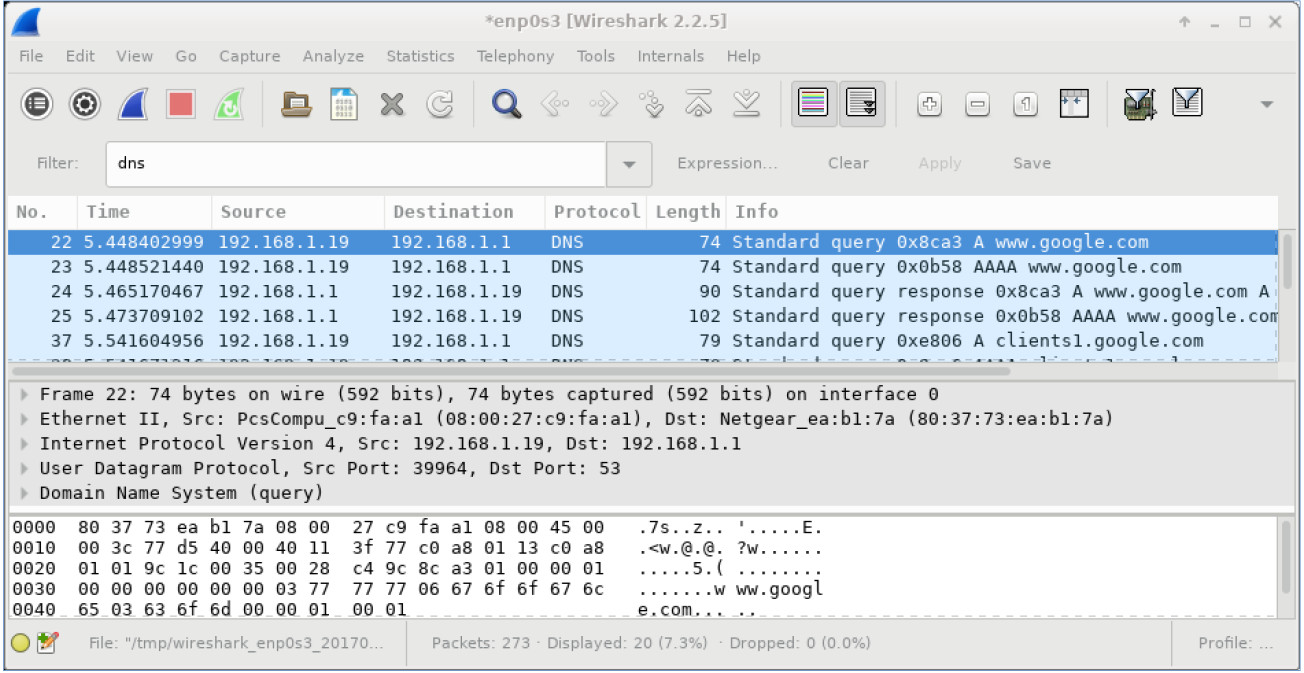
The program's interface can generally be divided into three main sections:
The first section displays captured packets and typically includes information such as:
- Packet number.
- Time.
- Source address.
- Destination address.
- Protocol.
- Packet length.
- A brief summary of the packet's contents.
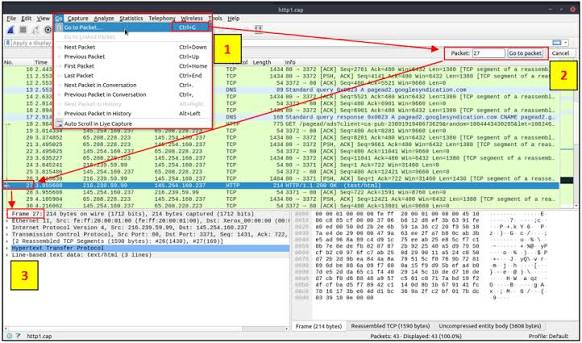
When you select a packet, you can inspect its protocols and fields. For example, you may see information associated with different network layers, such as Ethernet, IP, and TCP.
The raw-data section displays the packet data in hexadecimal format, alongside an ASCII representation when available.
Getting Started with Wireshark
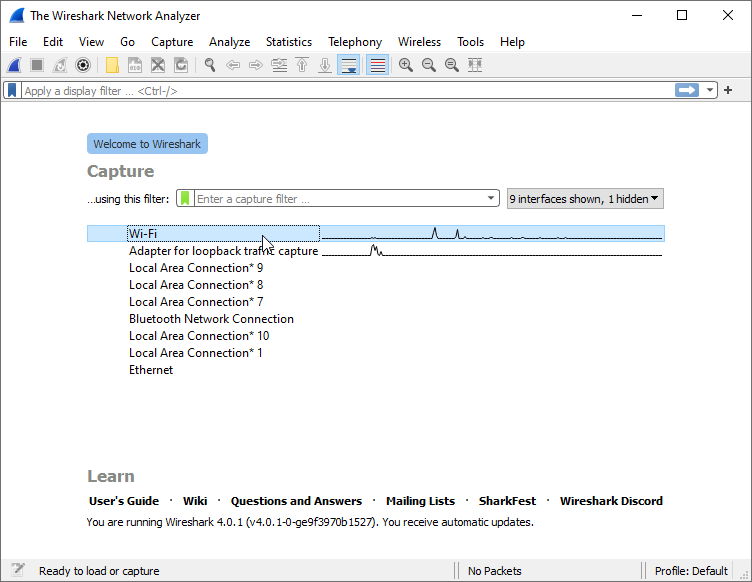
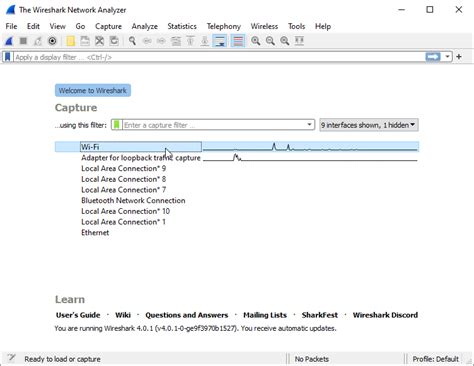
After installing and launching the program, you will see the network interfaces available on your device, such as Wi-Fi or Ethernet.
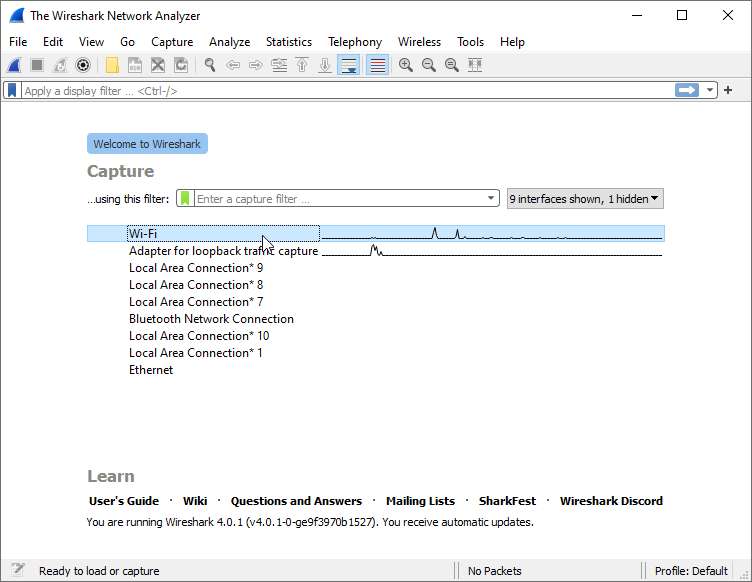
To start capturing packets, follow these steps:
- Open Wireshark.
- Select the network interface you want to analyze.
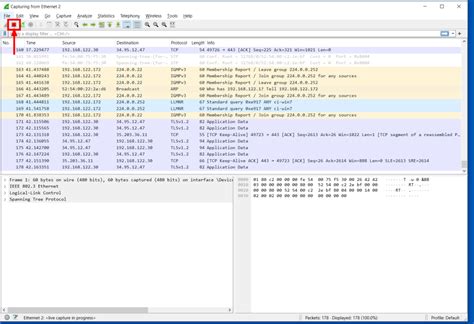
- Start the capture process.
- Let the program capture some packets.
- Stop the capture when you are finished.
- Select the packets you want to analyze.
You will notice that the number of packets can grow very quickly. That is why filters are among the most important tools for anyone using Wireshark.
What Are Wireshark Filters?
Filters help you focus on a specific type of packet instead of dealing with thousands of packets at once.
For example, use the following filter to display TCP packets:
tcpUse this filter to display DNS packets:
dnsYou can also find packets associated with a specific IP address by using:
ip.addr == 192.168.1.10To find traffic associated with a specific port, use:
tcp.port == 443These examples demonstrate Display Filters, one of the key features that make analyzing data in Wireshark easier.
Capture Filters vs. Display Filters
Beginners often confuse these two types of filters:
- Capture Filter: Defines which traffic is captured during the capture process.
- Display Filter: Applied after packets have been captured to determine which packets are shown and analyzed.
Therefore, a filter used during capture does not necessarily use the same syntax as a filter used to display packets.
A Practical Example of Packet Analysis
Suppose you want to study a network connection in a test environment that you are authorized to monitor. After launching Wireshark and starting a capture, you will see a large collection of packets.
Use the following filter to view DNS packets, then select one of them:
dnsAfter selecting a packet, its protocol details will appear. You can expand the different sections to learn more about the information contained in the packet.
Next, try another filter to display only TCP packets:
tcpThis is how you move from viewing general network traffic to analyzing a specific protocol or connection.
Important Protocols You Can Study with Wireshark
Wireshark supports analysis of many protocols. Important ones for beginners include:
- Ethernet: Understand communication on a local network.
- IP: Understand source and destination addresses.
- TCP: Understand reliable communication and connection establishment.
- UDP: Understand communication based on datagrams.
- DNS: Understand how domain names are resolved.
- HTTP: Study unencrypted web traffic.
- TLS: Understand encrypted communications at the protocol level.
Studying these protocols in practice helps turn theoretical networking concepts into something you can observe and analyze.
Benefits of Wireshark for Students
Wireshark is a valuable learning tool for networking and cybersecurity students. For example, instead of only reading a theoretical explanation of TCP, a student can create a connection in a lab, capture the packets, and examine the stages of that connection.
This helps students understand concepts such as:
- IP addresses.
- Ports.
- The TCP handshake.
- DNS queries.
- Packet sizes.
- Sequence numbers.
- Responses and errors.
Wireshark and Cybersecurity
Packet analysis tools are also used in cybersecurity to understand network traffic and identify unusual patterns.
For example, an analyst can examine incoming and outgoing connections in an authorized environment and compare normal behavior with unusual activity.
It is important to emphasize that Wireshark is not a hacking tool in itself; it is a tool for analyzing network traffic and capturing packets.
Saving Capture Files
Captures can be saved for later analysis or shared with a network team in a work environment.
Two common capture file formats used with Wireshark are:
.pcap.pcapngThese formats let you return to the captured data later without having to repeat the capture process from the beginning.
Tips for Beginners
If you are using Wireshark for the first time, it is best not to try to understand every packet at once.
Start with simple protocols such as:
- ARP
- DNS
- ICMP
- TCP
- HTTP
Then gradually move on to more complex protocols and concepts. It is also best to use Wireshark in your own learning lab, where you can experiment and understand the results without affecting networks or devices you are not authorized to monitor.
Conclusion
Wireshark is an important tool in networking because it allows users to observe and analyze data traffic at the packet level.